
How do Shopify mixed cart orders work with Early Bird? (In-stock and pre-order items in the same order)
Early Bird app supports mixed cart orders - where a customer checks out with both an in-stock item and a pre-order item in the same order. There are a few Shopify platform limitations worth understanding before you set up your workflow, particularly if you're using a warehouse or 3PL.
What Shopify order status does Early Bird assign to pre-order items in a mixed cart?
Early Bird assigns an order status to the pre-order item only. The in-stock item is assigned Unfulfilled by default, the same as any normal Shopify order.
The status Early Bird assigns to your pre-order item depends on what you've selected in your pre-order campaign's Fulfillment settings:
- Scheduled - you've set a specific expected shipping date (this is Shopify's official pre-order status)
- On Hold - you've selected "Not sure" as the expected shipping date
- Unfulfilled - you've selected "As soon as possible"

Check out our help article on the differences between Scheduled, Unfulfilled, and On Hold order statuses for more detail on when to use each one.
Can Shopify split a mixed cart into two separate order numbers?
No. Shopify cannot split a mixed cart into separate order IDs - this applies to all pre-order apps, including Early Bird.
What Shopify can do is split a single order into separate fulfillments (sometimes called sub-orders). These fulfillments share the same order ID but represent different shipments.

Check out our help article on whether it's possible to automatically split a Shopify order when a customer buys both in-stock and pre-order items for more detail.
Important note: If you're using a 3PL or warehouse management system, their platform may assign internal IDs to each fulfillment separately. Those internal IDs are not reflected in your Shopify Admin, which can cause confusion when cross-referencing orders between systems.
How do I stop my warehouse shipping in-stock items before my pre-order stock arrives?
Early Bird assigns the order status of your pre-order items, but it's Shopify that controls the fulfillment of your in-stock items. To prevent your warehouse or 3PL from dispatching in-stock items before your pre-order stock arrives, you have two options:
1. Put in-stock items on hold manually
In your Shopify Admin, open the specific order > find the in-stock fulfillment > select Put on hold. This signals to your warehouse or 3PL not to dispatch the in-stock item yet.
Best for: Stores with lower order volumes where reviewing orders individually is manageable.
2. Automate holds using Shopify Flow
Shopify Flow can automatically put in-stock fulfillments on hold when a mixed cart order comes in, removing the need to manually review each order.
Best for: Stores running frequent pre-orders or handling high order volumes.
Check out our detailed guide on how to hold all fulfillments to ship in-stock and pre-order items together on Shopify.
Running multiple pre-orders with different delivery dates on Shopify
If you're running multiple pre-orders where the stock arrives in separate deliveries, we recommend creating a separate Early Bird pre-order campaign per delivery date (each campaign supports up to 250 products and variants).
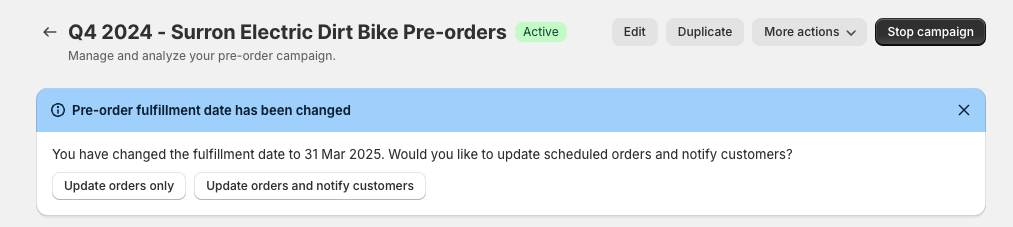
When a delivery arrives, bring forward the expected shipping date in the relevant campaign. A banner will prompt you to bulk-update all orders in that campaign from Scheduled to Unfulfilled, and optionally send a bulk email update to those customers.
Important note: Some 3PL systems only recognise Unfulfilled and On Hold statuses, not Scheduled. Check with your warehouse or 3PL team before going live, as you may need to manually change Scheduled orders to Unfulfilled before they appear in their dispatch queue.
Testing your workflow before going live
Before launching, we recommend placing a test order using a dummy product. In Shopify Admin, create a product and set it to Unlisted (so it doesn't appear on your storefront), set up an Early Bird pre-order campaign, and place a test order with one in-stock item and one pre-order item. Check how the order statuses appear in both your Shopify Admin and your warehouse or 3PL's system.
Need help?
If you have questions about setting up a mixed cart workflow that suits your store and warehouse/3PL setup, email us at support@shopside.com.au and we're happy to walk through your specific situation.